KP – Simulation – Mix & Position
1 min read
Mix / Position Buttons #
Toggle between the Mix and Position panels, offering two distinct modes for shaping the sound, globally or per instrument.

Mix Button #
Opens the Mix panel for adjusting microphone techniques and mix levels across all instruments.
Position Button #
Opens the Position panel for placing individual instruments within the stereo field.
Mix Panel #
Provides control over volume, stereo placement, and memory management of different microphone techniques and mixes. Changes made here apply globally to all instruments.
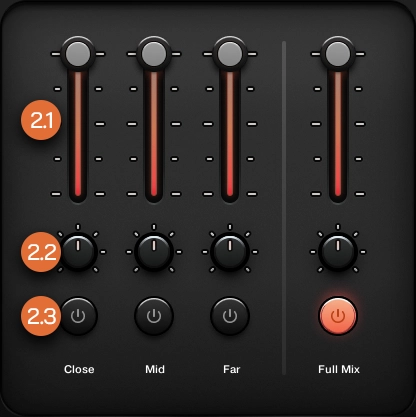
Volume Faders #
Adjust the loudness of each mic technique or mix, balancing their contribution to the overall sound.
Pan Knobs #
Control the left-right stereo placement of each mic technique or mix, allowing for a tailored stereo image.
Purge Buttons #
Unload or reload specific mic techniques and mixes to optimize RAM usage. Purging unused elements can improve performance in resource-constrained setups.
Position Panel #
Provides control over the spatial placement of individual instruments using an interactive XY Pad. The pad reflects the settings of the last touched instrument, and changes apply specifically to that instrument.
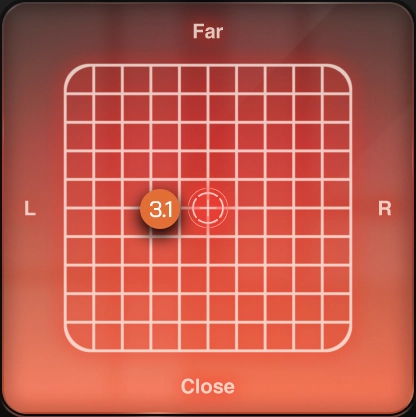
XY Cursor #
Position instruments within a virtual stereo field by dragging the on-screen cursor. Horizontal movement adjusts panning, while vertical movement performs equal-power crossfades between Close, Mid and Far signals to simulate depth and distance.