Kontakt Player Products
< 1 min read
Installation and Setup #
-
Download and install the latest version of Native Access from the official website.

-
Open Native Access and sign in with your Native ID account.

Registering the Product #
-
Click “Add Serial” at the bottom left to open the serial number window.

-
Copy and paste the serial number from your order email into the serial field.

-
Click the “Add Serial” button to register the serial to your Native ID account.

Product Management #
-
After successful registration, the product will appear in your Library. Click “Library” to view it.

-
Find the product in your Library and click “Install.” It will download and install to the default content folder. (You can change this folder by going to Preferences in the bottom left corner of Native Access, then clicking on File Management.)

Changing Installation Path (Optional) #
-
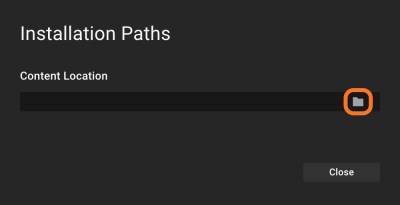
Click the three dots next to “Install” and select “Installation Paths.”

-
Choose a new installation path by clicking the folder icon.
Finalization #
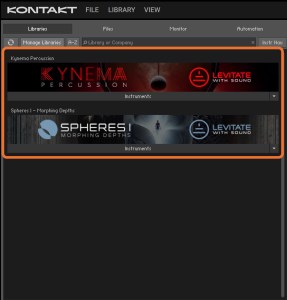
- Close Native Access and open Kontakt or Kontakt Player to view the library in the “Libraries” tab.